-
Product Overview
This is the most recent and final update available for the Mazda Connect 1st Generation system (Version 74.00.324A). This genuine firmware from Mazda Japan (as of November 2025) is now a Single File (.up) installation, making the process faster and safer than ever before.
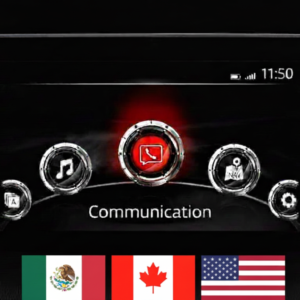
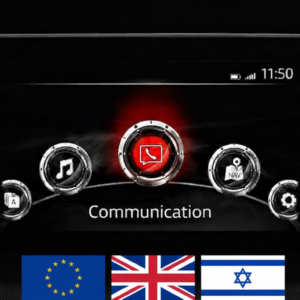
Important: This firmware is only for vehicles with the main menu layout shown in the product photo (7-inch display with icons in a semi-circle).
🌍 Regional Compatibility
Region Code: EU N (Europe) Supported countries include: Albania, Andorra, Austria, Belarus, Belgium, Bosnia & Herzegovina, Bulgaria, Croatia, Czech Republic, Denmark, Estonia, Finland, France, Germany, Gibraltar, Greece, Hungary, Ireland, Israel, Italy, Kazakhstan, Kosovo, Latvia, Liechtenstein, Lithuania, Luxembourg, Macedonia, Malta, Moldova, Monaco, Montenegro, Netherlands, Norway, Portugal, Poland, Romania, Russia, San Marino, Serbia, Slovakia, Slovenia, Spain, Sweden, Switzerland, Turkey, Ukraine, United Kingdom, Vatican City.
�� Applicable Models
-
Mazda 3: 2014–2018
-
Mazda 2: 2014–2022*
-
Mazda 6: 2015–2022
-
CX-3: 2014–2022
-
CX-5: 2015–2022*
-
CX-9: 2015–2022*
-
MX-5 Miata: 2014–2024*
Note: Not compatible with Mazda Connect System 2 (10.25″ / 26cm displays). Only for 1st Gen systems.
✅ Upgrade Path & Compatibility
If your current firmware is one of the following, you can update directly to v74.00.324A:
-
56.00.100A or higher
-
58.00.310A or higher
-
Any 59.00.xxx version
-
Any 70.00.xxx version
-
Earlier 74.00.xxx versions
🛠️ Bug Fixes & Improvements
The latest software (v74.00.324) addresses several known symptoms:
-
System Stability: Fixes frequent temperature warnings and black screen issues (specifically Mazda6).
-
Connectivity: Resolves Apple CarPlay™ sound issues (driver’s side speaker) and Bluetooth echo (MX-5 RF).
-
Navigation & GPS: Corrects inaccurate map location after parking and hangs during loading.
-
Visual Enhancements: Improved fonts/layout for i-stop, i-ELOOP, and fuel consumption menus. Updated CarPlay brand icons.
-
Performance: Faster playback start for USB media and corrected keyboard descriptions (Ukraine/Cyrillic).
-
Gracenote: Update package for music metadata is included in this installation.
📥 Installation Requirements
-
USB Drive: 4GB to 16GB (Strictly FAT32 formatted). Do not use drives larger than 16GB.
-
Time: Approx. 15–30 minutes.
-
Power: Healthy vehicle battery or engine running during the entire process.
🛠️ Installation Instructions
Step 1: Preparation
-
Format your USB stick to FAT32.
-
Copy the downloaded .up file directly to the root directory (do not use folders).
-
Crucial: Disconnect all devices from USB ports and remove the Navigation SD card before starting. Re-insert it only after the update is finished.
Step 2: Enter Diagnostic Mode
-
Turn vehicle to ACC or ON mode.
-
Press and hold: Music Note + Favorites + Mute (Volume) for about 5 seconds.
-
Navigate to: System Update > Search for Update.
Step 3: Update Process
-
The system will detect the file on your USB. Confirm to start the update.
-
Warning: Do not power off the vehicle or remove the USB until the “Update Successful” message appears. The system will reboot automatically.
-
Re-enter the Diagnostic Menu to verify the version has changed to 74.00.324.
Disclaimer: This update covers original Mazda systems only. We are not liable for malfunctions in aftermarket accessories or non-genuine components.
-
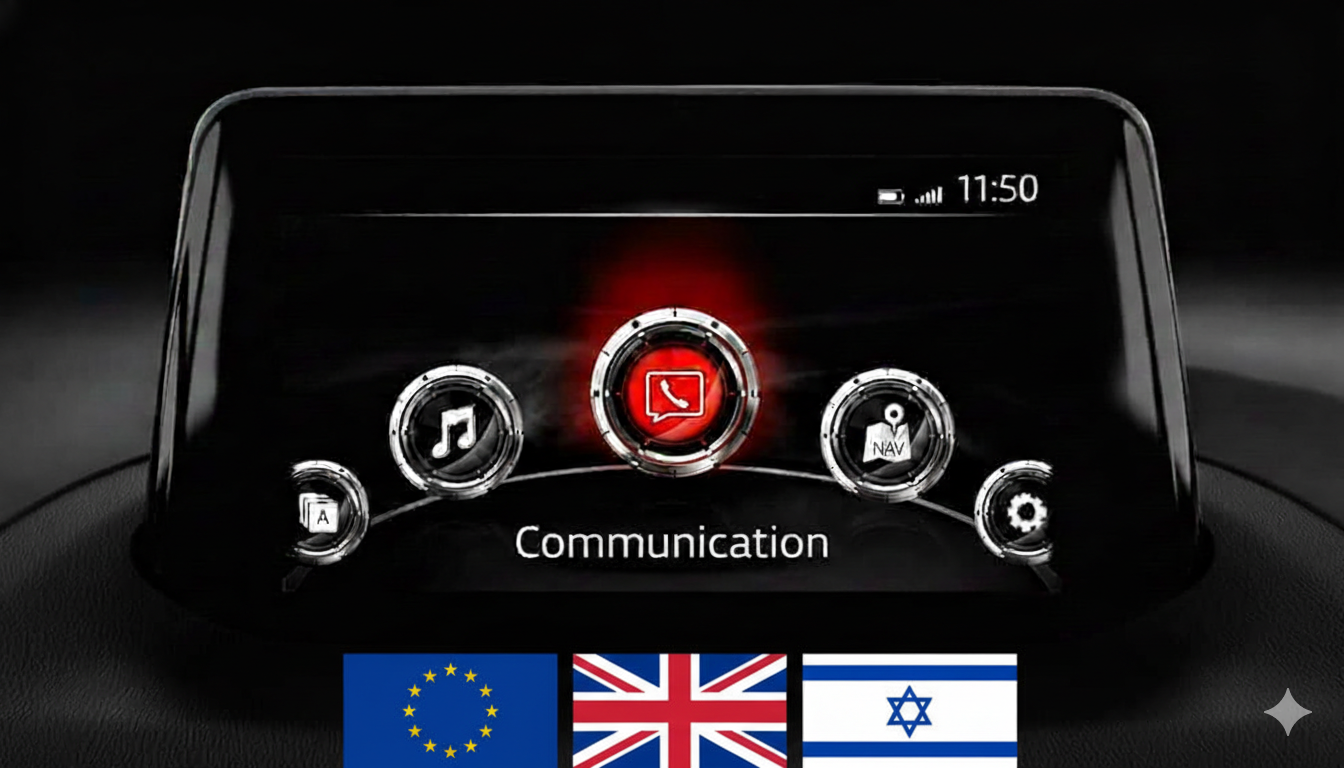
Mazda All Models Firmware Update v74.00.324A EU (Europe, UK, Israel, 2014-2021)
$ 15.00
Brandon Mitchell –
Best $15 I’ve spent on my car. The dealership wanted to charge me an arm and a leg for a ‘software inspection.’ Did it myself in 20 minutes with this file. Just make sure you use a high-quality and and formatted USB flash drive like the guide says.
Tyler Richardson –
Exactly what I needed for my 2018 CX-5. The v74.00.324A version is stable and solved the minor bugs I had with the reverse camera display. If you’re in the eu region, this is the one to get.