Mazda All Models Firmware Update v74.00.324A NA (USA/Canada/Mexico, 2014-2021)

$ 15.00

Guaranteed Safe Checkout With Gumroad

This is The most recent, and final update at this time is 74.00.324A. This firmware version/format (.up) will not be installed on new Mazdas (2022 and above). You must use the correct region for your Mazda, as detailed below.
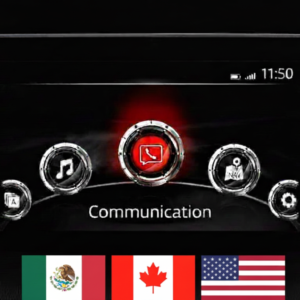
74.00.324A NA for – USA, Canada, Mexico, Puerto Rico

APPLICABLE MODEL(S):

Mazda 2        2014-2022*
Mazda 3        2014-2018*
Mazda 6        2015-2022
Mazda Mx­-5  2014-2025*
Mazda Cx-3  2014-2022
Mazda Cx-5  2015-2022*
Mazda Cx-9  2015-2022*

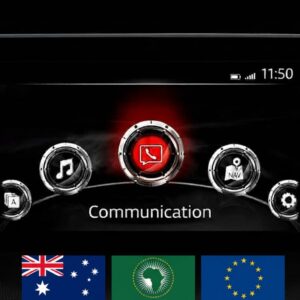
* Not for Mazda Connect System 2 with 10.25 inches (26 cm) display. Only for Mazda Connect 1 gen.

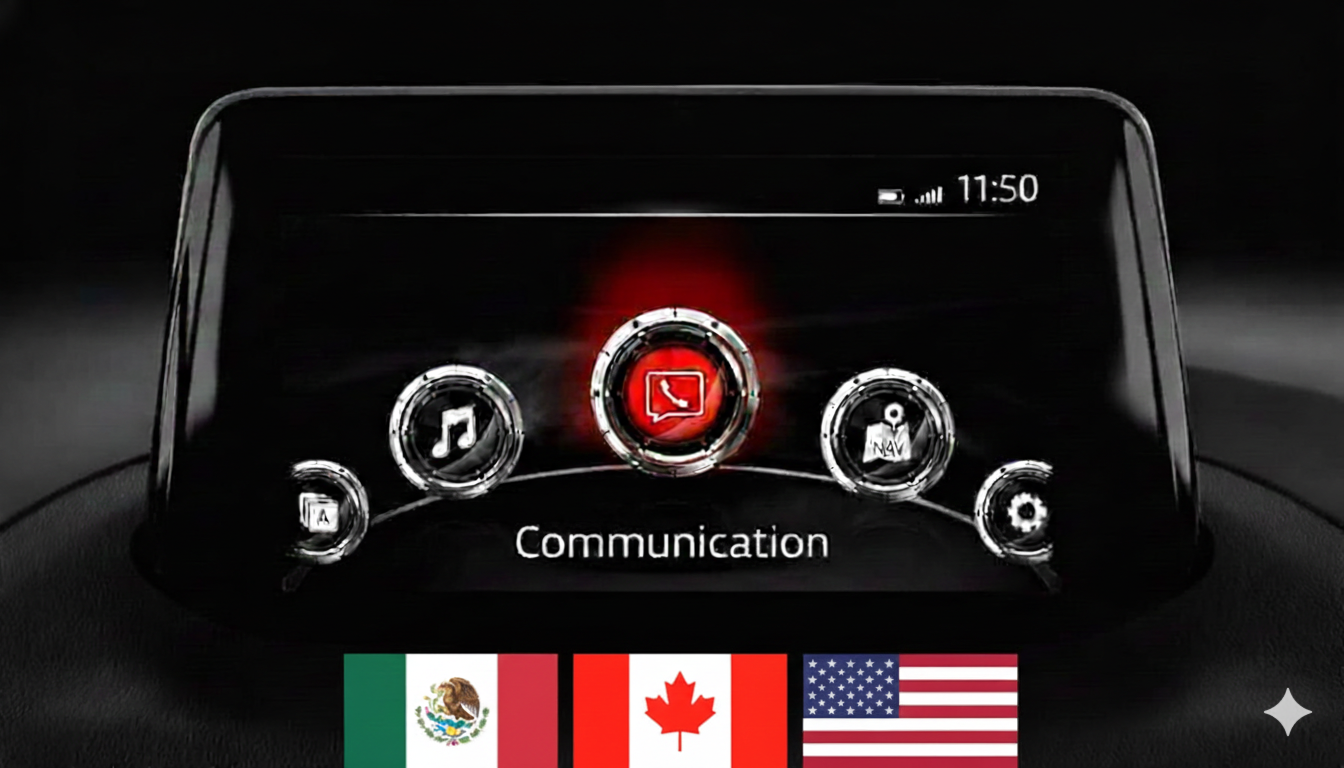
If you don’t know what is Mazda connect and Mazda connect 2 – this firmware is only for cars with a main menu on the screen that looks exactly like the one in the photo above.

READ CAREFULLY BEFORE INSTALLING (INSTALLATION INSTRUCTIONS ARE AT THE BOTTOM OF THIS PAGE):

IF YOUR MAZDA HAS .up FIRMWARE VERSION ON or ABOVE 55.00.650A (NA N) or the 56.00.100A or 58.00.310A
or Any 59.00.502A or 59.00.650A, or Any 70’s Firmware like 70.00.021A, 70.00.100A or 70.00.110 or 70.00.150A or 70.00.335C or 70.00.367A or 74.00.230A or 74.00.311A -> THEN YES YOU CAN UPDATE Directly to 74.00.324A for LATEST FIRMWARE.

This is now a SINGLE FILE (1) ONLY INSTALLATION for YOUR REGION & COUNTRY. THIS IS THE LATEST GENUINE FIRMWARE CURRENTLY AVAILABLE FROM MAZDA JAPAN As Of NOVEMBER 30th, 2025.

IF YOUR MAZDA HAS FIRMWARE VERSION ON or BELOW 55.00.600 NA N for North America,
THEN YOU MUST UPDATE with Version Number 70.00.100A First!:
THIS IS A TWO (2) FILE INSTALLATION FOR YOUR REGION or COUNTRY. THEY ARE SOLD ALSO IN THIS SITE.


Bug Fixes

The following symptoms can be improved by the latest software (Ver. 74.00.324). Improved symptoms depend on current software versions.

  • If the shift lever is operated quickly while displaying the CarPlayTM screen, the rear view screen may not return to the CarPlayTM screen.
  • When the gear position is shifted into P from R, the screen may not return to the previous condition before shifting into the R position.
  • When using CarPlayTM, sound may not come out from the driver side speaker.
  • Frequent temperature warnings may appear in the center display.
  • The time in the center display may be inaccurate.
  • The traffic sign recognition (TSR) system may display incorrect speed limits.
  • When using CarPlayTM, sound may not come from the driver’s side speaker.
  • [Mazda6 (VIN 600001-TBD)] The central display switches to a black screen because the display turns off. (Further refinement)
  • The CMU® update package includes an update package for Gracenote.
  • With improved software, the “System Update” menu on the display shows “Update Package” instead of “Reinstallation Package.” “Security Package” has been removed.
  • The brand icon on the CarPlay screen has been updated thanks to improved software.
  • Thanks to better software, the font and layout of texts such as i-stop, i-ELOOP, and average fuel consumption have been improved.
  • A white spot appears on the status bar on the main screen.
  • [MX-5 RF] During a Bluetooth call, the person on the other end hears a strange, echoing voice.
  • [Mazda6 (VIN 600001-TBD)] The central display switches to a black screen because the display turns off.
  • In the LAS and LDWS settings menu, “Rumble” is displayed as “Rumbl.”
  • The display off setting is not saved when the ignition switch is turned off and on before the CMU goes into sleep mode.
  • When a certain language that uses Cyrillic is selected and USB is selected as the audio source, the index list for the song or artist screen displays the wrong symbol for “b.”
  • When playing audio files on USB flash drives, the start of playback may take too long.
  • When the radio is selected as the audio source and a Bluetooth call ends, the radio plays for a very short period of time, even if it is turned off.
  • After starting the engine, the navigation screen hangs in the loading state.
  • When USB is selected as the audio source, if you switch to reverse gear to display the rear monitor during data transfer from the USB device, switching to drive mode moves the screen to the main screen instead of the USB audio screen.
  • When using 19Q2 or older map data, the voice message for the speed camera may not sound in certain locations. (Thanks to improved software, customers need to update their map data to a newer version.)
  • If the performer is selected using a voice command for USB audio, the wrong performer album may be selected.
  • After parking, the current location on the navigation screen may not change until the ignition is turned off and on again.
  • [Android Auto used in southern latitude or western longitude] When ACC is on or the engine is running in an area where GPS signal is not available, such as navigation, weather forecast, etc., the current location displayed may be incorrect. When GPS signal becomes available, the correct current location will appear. (Except for CarPlay)

Installation Requirements

  • USB flash drive (FAT32 formatted) – minimum 4 GB, up to 16 GB (do not use higher volume flash drive)
  • Access to the Mazda Connect infotainment system
  • Good vehicle battery or engine running during installation
  • Approximately 15–30 minutes

📥 How to Check Your Current Firmware Version

  1. Turn on your vehicle (ACC or ON mode).
  2. Press and hold the following three buttons at the same time:
    • Music Note + Favorites + Mute (Volume)
  3. The Diagnostic Menu will appear.
  4. Navigate to:
    Version Information > Connected Device > CMU
  5. Your current software number will be displayed. If it’s lower than 11048, you can safely update.

🛠️ Installation Instructions

⚠️ Please follow all steps carefully. Do not power off the vehicle or remove the USB drive during the process.

  • IMPORTANT: This update covers original Mazda systems only. We are not liable for malfunctions in aftermarket accessories (Navigation SD cards, cameras, etc.) installed by local importers. Please consult your local installer for issues related to non-genuine components. For a smooth installation, we recommend disconnecting all devices from USB ports and removing the Navigation SD card during the update process. you can insert it back ONLY after update procedure is complete

Step-by-step Guide:

  1. Prepare USB Drive:
    • Format the USB stick using FAT32 format.
    • Copy the update file *.up to the root directory (not inside any folders).
  2. Insert USB and Start Vehicle:
    • Insert USB into the front USB port.
    • Start the vehicle or place it in ACC mode (ensure stable power supply).
  3. Enter Diagnostic Mode:
    • Press and hold: Music Note + Favorites + Mute (Volume) for about 5 seconds.
    • The Diagnostic Test Screen will appear.
  4. Start Firmware Update:
    • Navigate to: System Update > Search for Update
    • The system will detect the update file.
    • Confirm to start the update process.
  5. Wait for Completion:
    • The process will take 15–30 minutes.
    • Keep the vehicle on and do not remove the USB.
    • System will reboot automatically when done.
  6. Confirm Update:
    •  Re-enter the Diagnostic Menu and verify that the software version is the latest

Reviews

There are no reviews yet.

Be the first to review “Mazda All Models Firmware Update v74.00.324A NA (USA/Canada/Mexico, 2014-2021)”

Your email address will not be published. Required fields are marked *

Shopping Cart
MAZDA CONNECT v74.00.324A NAMazda All Models Firmware Update v74.00.324A NA (USA/Canada/Mexico, 2014-2021)
$ 15.00