
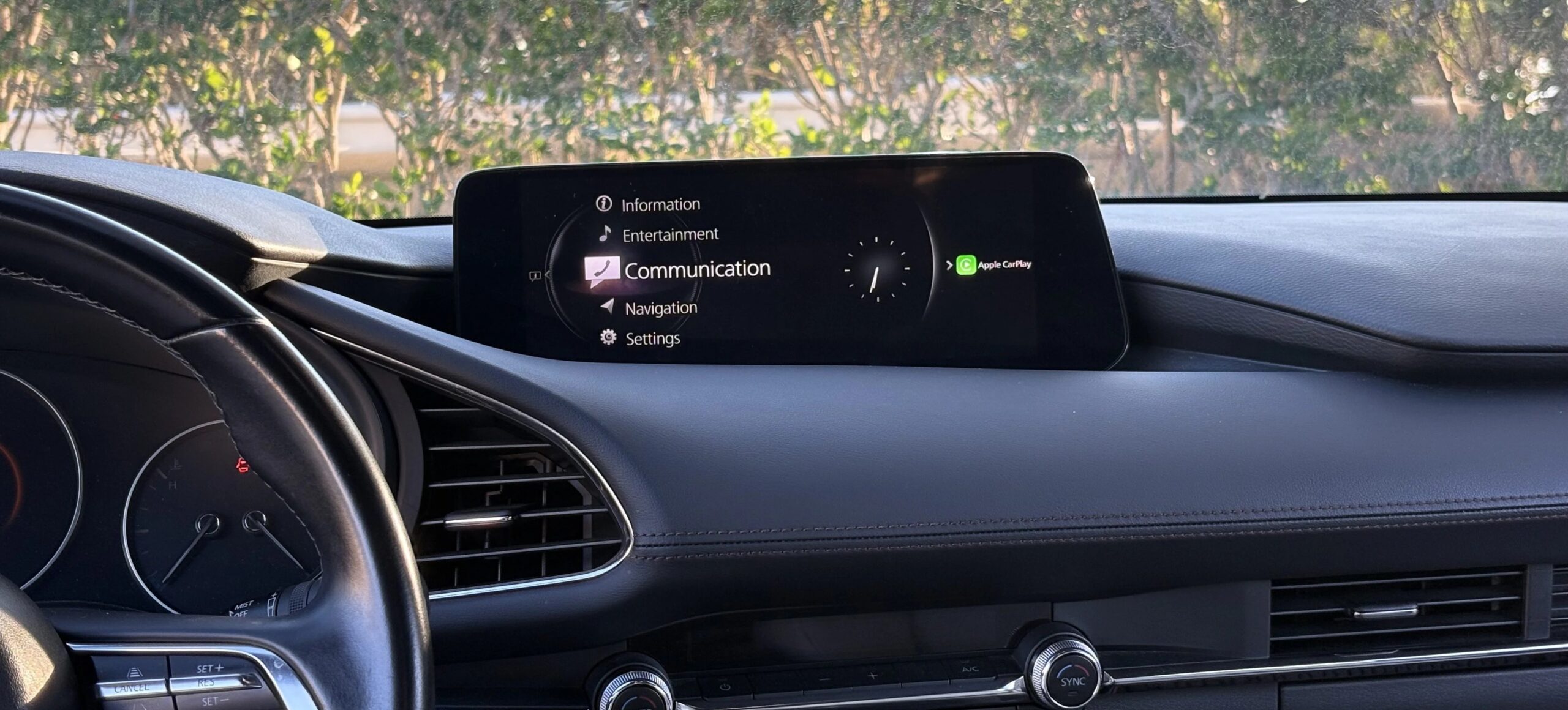
What’s Included:
- Original .kwi firmware file: CMU_7000C0A-4A01_11006.kwi
- Installation instructions
🔧 Firmware Overview
- File name: CMU_7000C0A-4A01_11006.kwi
- Model compatibility: Mazda CX-30 and Mazda 3
- Years supported: 2019 – 2024
- Region: GENERAL (4A** file) L.H.D and R.H.D – Middle East, South Asia, South Africa, Oceania (except Hong Kong).
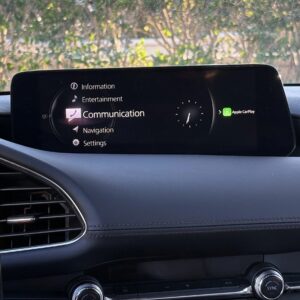
- System: Mazda Connect (7th Generation / Connect 2)
✅ This firmware is intended for vehicles sold in Middle East, South Asia, South Africa, Oceania -> GENERAL L.H.D and R.H.D – Middle East, South Asia, South Africa, Oceania (except Hong Kong) – Australia, Christmas Island, Fiji, Indonesia, Kangaroo Island, Malaysia, Israel & Middle-East, New Zealand, Oceania, Papua New Guinea, Philippines, Qatar, Saudi, Singapore, South Africa/Africa, South America (Most of), Asia (Not Japan or China & Hong kong), Tasmania, Thailand.
What’s Included:
- Original .kwi firmware file: CMU_7000C0A-4A01_11006.kwi
- Installation instructions
🚗 Compatible Vehicle Models
Model Years Supported ADR Region Mazda 3 & Mazda CX-30 2019–2024
🧰 Installation Requirements
- USB flash drive (FAT32 formatted) – minimum 4 GB, maximum 16 gb
- only use pc computer for format and copying files.
- Access to the Mazda Connect infotainment system
- Good vehicle battery or engine running during installation
- Approximately 15–30 minutes
📥 How to Check Your Current Firmware Version
- Turn on your vehicle (ACC or ON mode).
- Press and hold the following three buttons at the same time:
- Music Note + Favorites + Mute (Volume)
- The Diagnostic Menu will appear.
- Navigate to:
Version Information > Connected Device > CMU - Your current software number will be displayed. If it’s lower than
11006, you can safely update.
🛠️ Installation Instructions
⚠️ Please follow all steps carefully. Do not power off the vehicle or remove the USB drive during the process.
- IMPORTANT: This update covers original Mazda systems only. We are not liable for malfunctions in aftermarket accessories (Navigation SD cards, cameras, etc.) installed by local importers. Please consult your local installer for issues related to non-genuine components. For a smooth installation, we recommend disconnecting all devices from USB ports and removing the Navigation SD card during the update process. you can insert it back ONLY after update procedure is complete
Step-by-step Guide:
- Prepare USB Drive:
- Format the USB stick using FAT32 format.
- Copy CMU_7000C0A-4A01_11006
.kwito the root directory (not inside any folders).
- Insert USB and Start Vehicle:
- Insert USB into the front USB port.
- Start the vehicle or place it in ACC mode (ensure stable power supply).
- Enter Diagnostic Mode:
- Press and hold: Music Note + Favorites + Mute (Volume) for about 5 seconds.
- The Diagnostic Test Screen will appear.
- Start Firmware Update:
- Navigate to:
System Update>Search for Update - The system will detect the update file.
- Confirm to start the update process.
- Navigate to:
- Wait for Completion:
- The process will take 15–30 minutes.
- Keep the vehicle on and do not remove the USB.
- System will reboot automatically when done.
- Confirm Update:
- Re-enter the Diagnostic Menu and verify that the software version is now
11006.
- Re-enter the Diagnostic Menu and verify that the software version is now
🧑🔧 Troubleshooting Tips
- USB not detected?
- Ensure file is correctly named and placed in the USB root
- Use a FAT32-formatted USB drive (4–16 GB works best)
- Update won’t start?
- Try another USB stick
- Redownload the file to avoid corruption
📌 Important Notes
- update file will not be recognized by systems from other regions. verify you have the correct region update file that fits your car.
- Ensure stable power during the entire update. If unsure, leave the engine running.
Reviews
There are no reviews yet.